
Quickstart: Gate Connect
Gate Connect routes the AI apps you already run through Gate, with no code changes. You sign in once, turn on the apps you want covered, and they keep working exactly as before, with Gate’s security scanning, audit trail, and cost tracking running underneath. The same flow covers Claude Code, Claude Desktop, Codex, and the other apps Gate Connect supports.
Before you start
You need:
- A Gate account. Sign in to the dashboard to create one.
- A Gate API key, found under API keys in the dashboard. Have it ready for step 2.
- The apps you want to route, already installed on your machine.
Step 1. Install Gate Connect
Download the installer for your platform from the latest release:
- macOS: the universal
.dmg - Windows: the
x64setup.exe - Linux: the
.AppImageor.deb
Open the installer, then launch Gate Connect. It runs from the menu bar (top right on macOS, the system tray on Windows), not as a normal window. Click the icon to open its panel.
Step 2. Sign in
In the panel, paste your Gate API key and click Connect. The gateway address is filled in for you, so the key is all you need. Once it connects, the icon shows Connected.
Your key is stored in your operating system’s keychain, not in a file on disk.
Step 3. Turn on your apps
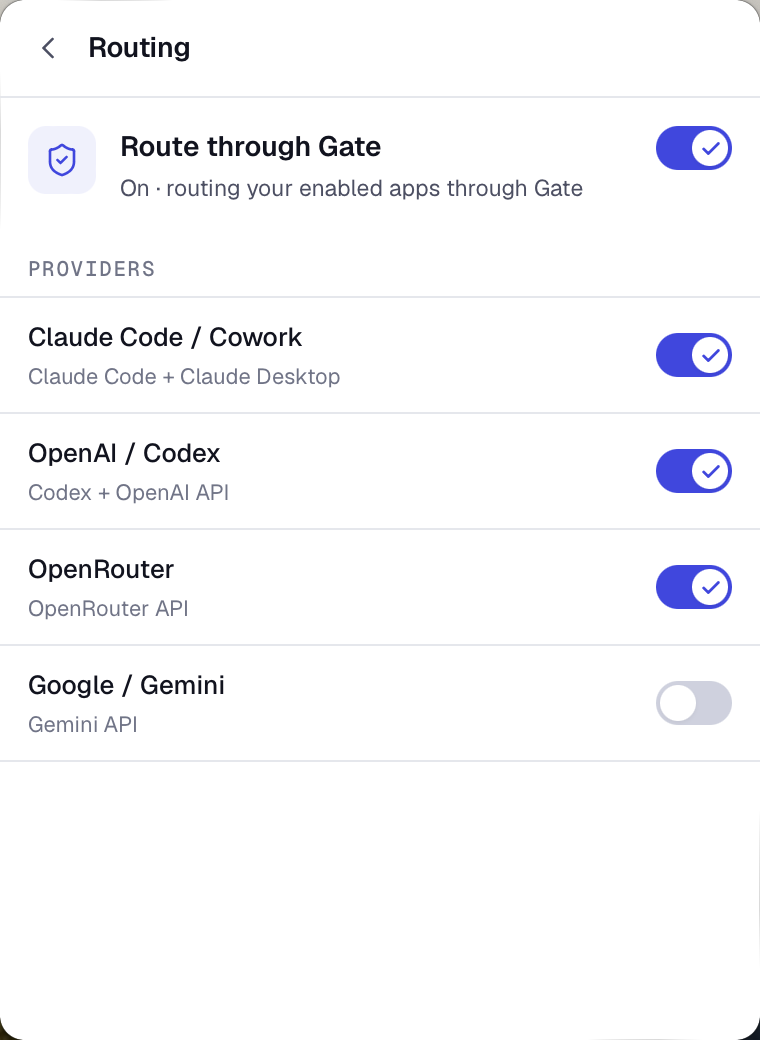
Open Routing and make sure Route through Gate is on. Then turn on each app you want Gate to cover. A single toggle can cover more than one, for example Claude Code and Claude Desktop together.
Step 4. Restart your apps
Quit and reopen each app you turned on, so it picks up the new routing. On macOS, quit completely with Cmd+Q rather than just closing the window. If an app prompts you to sign in the first time it reopens, follow its normal sign-in.
Step 5. Confirm it is working
Send a message from one of the apps you turned on, then open the dashboard. New requests appear on the Messages page within a few seconds, each with its model, cost, and security result.
If nothing shows up, check that the app is turned on in Routing and that you restarted it.
Next steps
- See what your apps did in the audit trail.
- Need notes for a specific app? See Connect your apps.
- Prefer to wire things up yourself? Follow the manual setup quickstart.