
Manage connections
Once your apps are connected, the Gate Connect panel is where you check status, rotate your key, stop routing an app, or update Gate Connect. Every action here has a terminal equivalent in the command-line interface.
Connection status
Open the panel to see each app’s state:
- Not installed. Gate Connect did not find the app on this machine.
- Detected. Installed, but not routed through Gate yet.
- Connected. Routing through Gate.
- Drifted. The app’s config changed outside Gate Connect and no longer points at Gate. Reconnect to fix it.
Stop routing an app
- Config app (Claude Code, Codex, opencode): turn it off in the panel. Gate Connect restores the app’s original config.
- Proxy app (Claude Desktop / Cowork, ChatGPT, and others): turn its provider domain off, or turn the proxy off entirely to stop routing everything.
Change or rotate your key
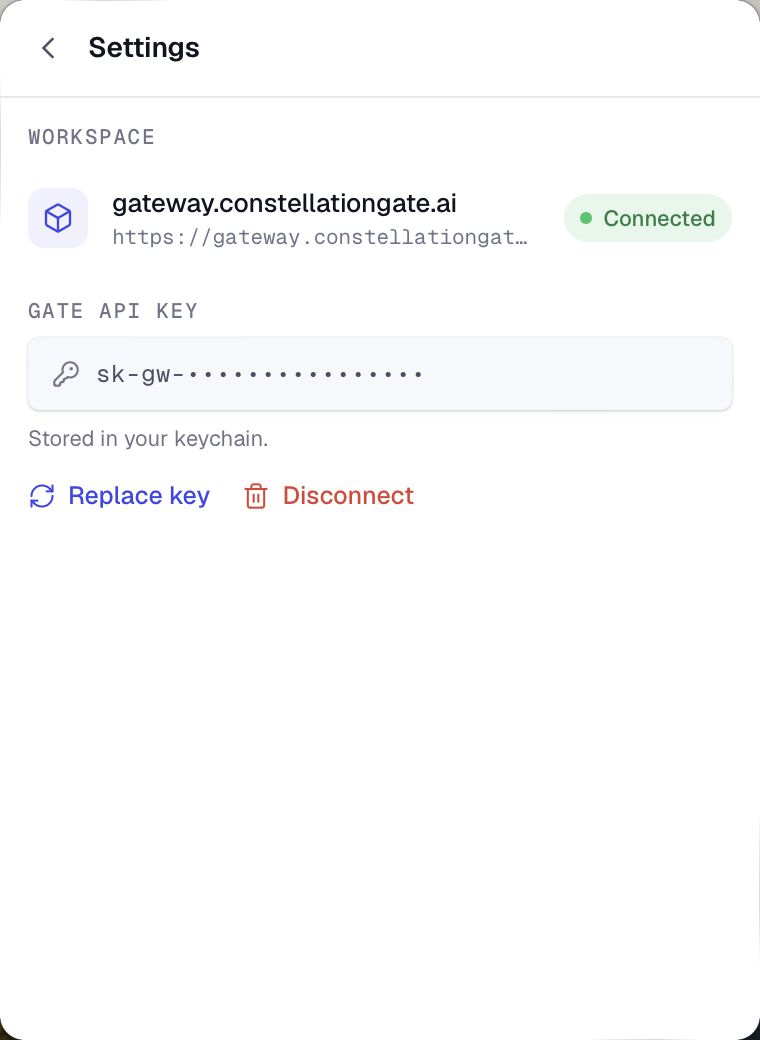
Open Settings in the panel. It shows the gateway you are connected to and your stored key. To replace the key, choose Replace key and paste a new sk-gw-… value. To sign out completely, choose Disconnect, which also disconnects every app Gate Connect manages so they return to their providers directly.
Update Gate Connect
When a new version is available, Gate Connect offers to update itself the next time you open the panel. You can also download the latest installer from the releases page at any time.