
Connect your apps
The Gate Connect quickstart is the fast path: install the app, sign in, and turn on your apps from the menu bar. This page covers what happens underneath and the details for each app. Prefer the terminal? See the command-line interface.
Three ways Gate Connect routes an app
Gate Connect connects an app in one of three ways, and picks the right one for you:
- Config integration — for apps with their own config, namely Claude Code, Codex, and opencode. Gate Connect writes the setting that points the app at your gateway, and removes it again when you disconnect.
- Proxy engine — for apps that let you aim their own outbound traffic somewhere, like OpenClaw and Hermes. Gate Connect runs a local proxy engine and points the app’s egress at it.
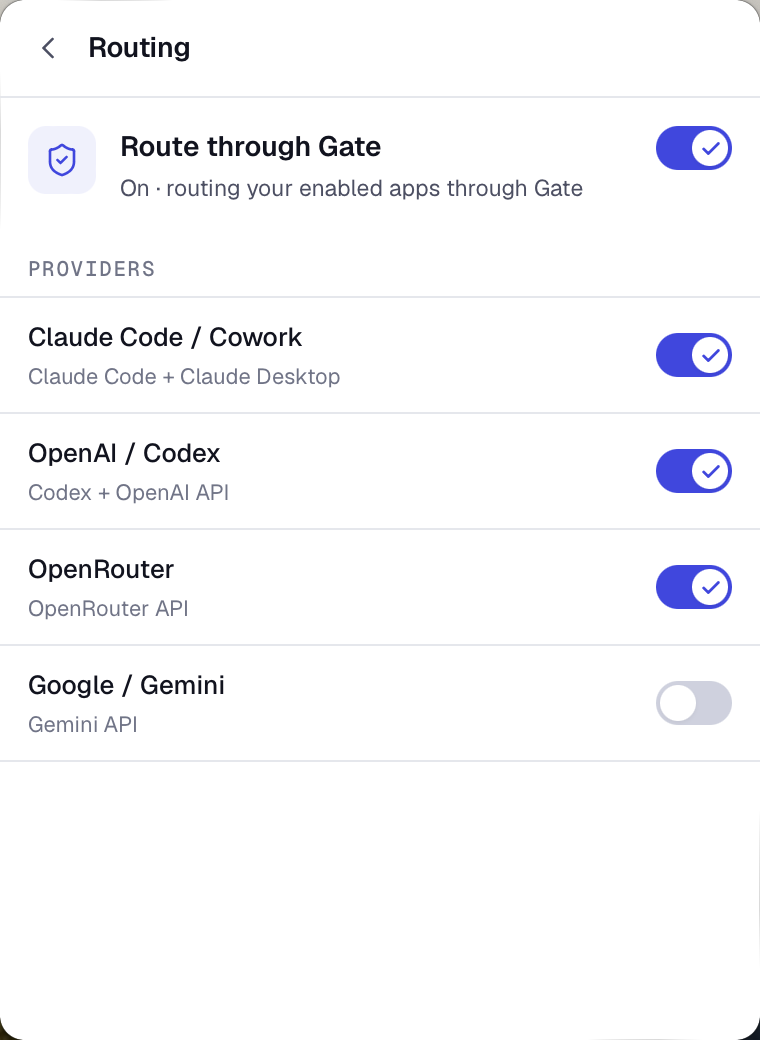
- Provider-domain proxy — for apps that talk straight to a provider with no such setting, like Claude Desktop / Cowork and ChatGPT. The same local proxy engine intercepts traffic to that provider’s domain and routes it through Gate. You choose which provider domains to route.
Whichever it is, the app works exactly as before; its requests now pass through Gate first.
Notes per app
- Config integrations (Gate Connect writes the app’s own config): Claude Code, OpenAI Codex CLI, OpenCode.
- Proxy-engine integrations (Gate Connect points the app’s own egress at its local proxy engine): OpenClaw, Hermes.
The proxy engine is a local forward proxy: the app’s request goes to it first, and it decides per connection whether to open the traffic and route it through Gate or to tunnel it through untouched. A proxy-engine integration points the app’s own egress setting at that engine, which is how OpenClaw and Hermes connect — unlike a config integration, nothing about which endpoint the app calls can route around it. The same engine backs the provider-domain routes in the list below, reached there through your machine’s proxy setting instead of the app’s.
- Claude Code — config integration. Gate Connect points it at your gateway through Claude Code’s custom-header setting. Your existing Claude Code sign-in is untouched.
- Codex — config integration. Gate Connect writes the base URL into
~/.codex/config.toml. You do not need to setOPENAI_API_KEY; Gate handles upstream auth. - opencode — config integration. Gate Connect adds Gate as a provider. The keys from
opencode auth loginstay in place. - Claude Desktop / Cowork — provider-domain proxy. Cowork manages its own sign-in: when prompted, sign in to Anthropic from inside Cowork. Gate Connect only points its traffic at Gate; it does not change how you log in.
- ChatGPT and OpenRouter apps — provider-domain proxy. Turn on
chatgpt-appsfor the ChatGPT app, oropenrouterfor anything that calls OpenRouter, and that traffic routes through Gate. The CLI page lists every domain slug.
Confirm it is working
Send a message from a connected app, then open the dashboard. New requests appear on the Messages page within a few seconds, each with its model and security result. If nothing shows up, see Manage connections for status checks and fixes.
Cost is shown for traffic that goes through Gate with your own API key. The consumer chat apps — ChatGPT, Claude, and Copilot signed in with a subscription — do not report token counts to Gate at all, so Gate estimates the cost from the message text and marks the figure with a ~, for example ~$0.0123. Estimates are for visibility only: those apps are covered by your subscription, not charged by Gate, and an estimate never counts toward a spending limit. CSV exports keep estimates in their own Estimated Cost column so the Cost column stays billed amounts only.
Use the App filter on the Messages page to look at one app on its own, or to separate your API and coding-agent traffic from the chat apps.
Copilot rows carry an Attested, not observed notice. Copilot reaches Microsoft over a connection Gate does not sit inside, so Gate Connect reports each turn rather than inspecting it in transit. The content is still scanned — but Gate is recording what the app told it, not what Gate saw.